Do Two-Column Resumes Break ATS Parsing? We Tested 19 PDFs
We exported one resume 19 ways and read each PDF back with three text extractors. Two-column layouts kept their text. Wide heading spacing and flattened images did not.
Published by MatchCV. Editorial scope and corrections.
"Avoid columns, tables and fancy layouts" is the most repeated resume formatting advice there is. We wanted to see how much of it holds up when you look at a PDF's text the way a parser has to.
So we built the test. One sample resume went through every MatchCV template and through a set of layouts that are common in design tools. We converted each to a PDF and read the text back with three extraction methods. The short answer is that text almost always survives, and what breaks is structure: which heading a block of text sits under, and which job a date belongs to. Two things broke in every extractor we tried.
What we tested
The resume is a fictional software engineer ("Alex Chen") with three jobs, 11 bullets, 13 keywords we looked for, and five headed sections. Every PDF was generated by headless Chromium, the same engine MatchCV uses for PDF export. The 19 files were:
- The 5 MatchCV templates (single column).
- A sidebar layout: contact, skills and education in a left column, experience on the right.
- A table layout: each job a table row, with dates in a right-hand cell.
- An absolute-positioned layout, with every block placed by coordinates and written to the file in a different order than it's read. This is how many design-tool exports behave.
- A single-column resume with wide letter-spaced headings, the kind a designer picks for looks, plus a sweep of nine versions that differ only in heading letter-spacing from 0 to 0.45em.
- The single-column resume flattened into an image.
We read each PDF with three open-source methods: pdf.js (through the pdf-parse library), poppler in reading-order mode, and poppler in content-stream mode, which returns text in the order the PDF stores it. We scored five things: whether every bullet came out as intact text, whether the keywords were found, whether each heading came out as a readable word with its own content on the next line, whether each start date sat next to its job title, and whether the name was on the first line.
None of these is an ATS. Commercial parsers, such as the ones inside Workday, Greenhouse or Lever, add their own processing on top of the text, and we can't see inside them. The test shows what text a parser is given to work with.
Single-column layouts came through perfectly
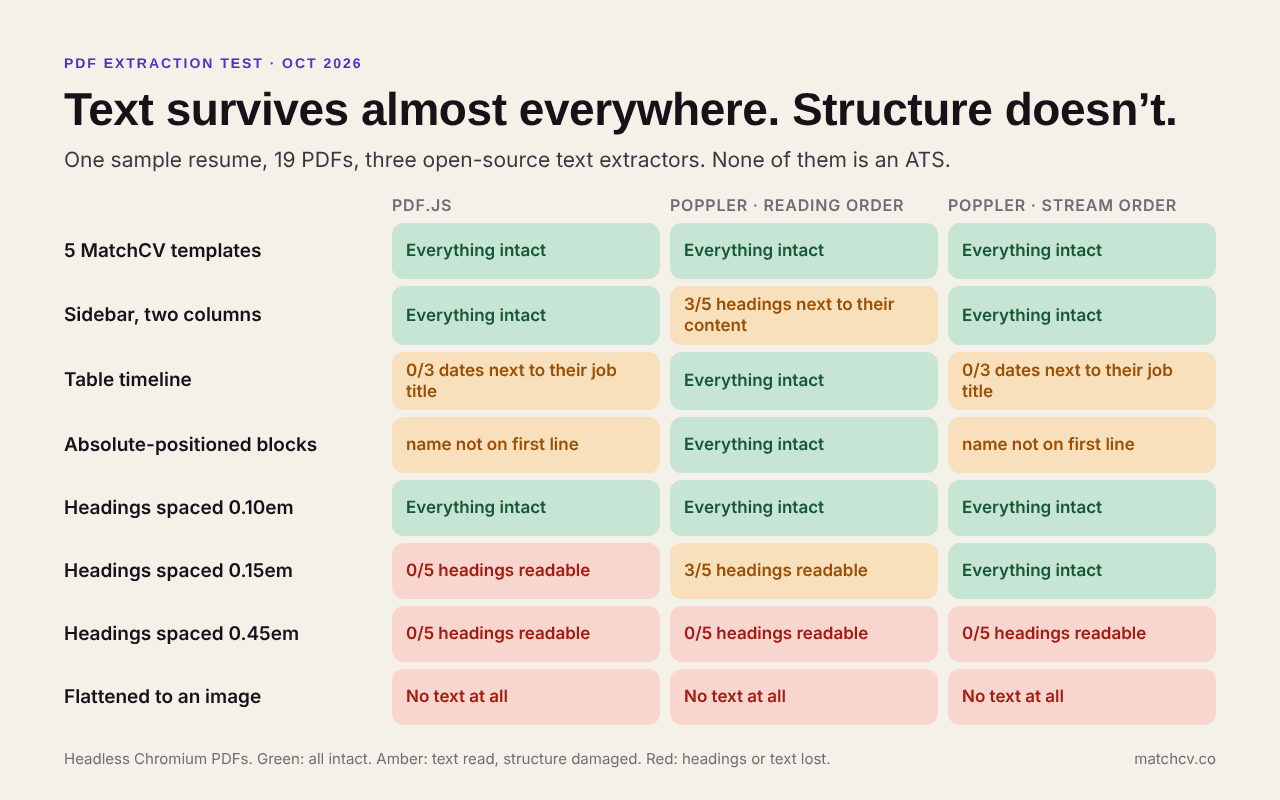
All five MatchCV templates scored full marks in all three extractors. Every bullet was intact, all 13 keywords were found, all five headings were readable and followed by their own content, every date sat beside its job, and the name was the first line. That's 15 clean extractions out of 15.
The text survived in the sidebar, but one extractor lost the structure
In the two-column sidebar layout, all 11 bullets and all 13 keywords were recovered by all three methods. The difference came from poppler's reading-order mode, which tries to read the page the way a person would, column by column. It returned the headings and their content interleaved: "SKILLS," then "EXPERIENCE," then the skills list, then the first job. Two of the five headings were no longer next to their own content. The other two methods read the same file correctly.
If a parser sorts text by heading, a skills list sitting under "EXPERIENCE" is a real problem. Whether it happens depends on the parser.
The table kept the text but moved the dates
In the table layout, all bullets and keywords were intact. The dates were another matter. In pdf.js and in the content-stream mode, each date came out after that job's bullets, right before the next job's title, so no date was next to the job it belongs to. A parser that reads a date line as the start of the next entry could attach it to the wrong job. Poppler's reading-order mode put them in the right place.
In our first run, the date column was narrow, the dates wrapped onto two lines, and one came out as "202102." We widened the column so the table layout itself was the only difference.
Absolute positioning put the name in the wrong place
When blocks are placed by coordinates and written to the file out of reading order, pdf.js and the content-stream mode started the text with "EXPERIENCE." The candidate's name appeared later. Poppler's reading-order mode, which sorts by position on the page, handled it fine. All the text was still there. What's at risk is any parser that assumes the first line is the name.
Wide letter-spacing broke headings in every extractor
This was the one failure that showed up across all three methods. We tested 12px uppercase section headings at different letter-spacing values and counted how many of the five came out as a readable word.
| Letter-spacing | pdf.js | poppler, reading order | poppler, stream order |
|---|---|---|---|
| 0 to 0.10em | 5 of 5 | 5 of 5 | 5 of 5 |
| 0.15em | 0 of 5 | 3 of 5 | 5 of 5 |
| 0.20em and 0.30em | 0 of 5 | 3 of 5 | 0 of 5 |
| 0.45em | 0 of 5 | 0 of 5 | 0 of 5 |
At 0.10em and below, every extractor was fine. At 0.15em pdf.js had already given up on all five headings, and by 0.45em all three had. The failed headings came out the way they look on the page: E X P E R I E N C E. The bullets, keywords and dates were untouched. Only the headings broke, but headings are how a parser finds sections.
This is an easy one to hit by accident. Wide tracking on uppercase headings is a common "designer" touch, and it looks fine on screen.
A flattened PDF has no text
When we saved the resume as a picture, which is what "print to image" or some design-tool exports produce, all three extractors returned essentially nothing. pdf.js gave back 12 characters and the other two gave none. This is the failure everyone warns about, and it's real. If you can't select the text in your PDF, a parser can't read it either.
What we'd do with this
- Stay with one column unless you have a reason. It was the only layout that was clean in every extractor.
- If you want a sidebar, keep it to contact details and a short skills list, and put your experience in the main column. Treat the result as something to check, because it depends on the parser.
- Keep heading letter-spacing at or below about 0.10em, or skip it.
- Don't use a layout that depends on tables for dates. Put the date on the same line as the job title.
- Check your own PDF. Open it, select all, and paste into a plain text editor. That's close to the floor of what a parser gets. If headings are spaced out, a name is missing from the top, or nothing pastes at all, fix the file.
The free ATS checker refuses a PDF it can't read text from, which catches the flattened-image case. Our guide to whether ATS can read PDF resumes covers the file-format side, and the ATS resume template checklist covers layout and headings.
What this can't tell you
- It's one resume. A fictional software engineer in English. A longer resume or one with unusual characters may behave differently.
- It's one rendering engine and one font. Every PDF came from Chromium, and the test pages used Arial, which on our machine is a metric-compatible substitute. Other tools write PDFs differently, and the letter-spacing thresholds could shift with font size or typeface.
- No ATS was tested. Three open-source extractors stand in for the first step every parser has to take. A given employer's system may handle any of these layouts better or worse.
- Word files weren't tested. We only looked at PDFs.
Check if your resume passes ATS screening — free, no sign-up needed
Check my ATS score free →or sign in free to tailor your resume with AI