How to Convert a LinkedIn Profile to a Resume: Steps and Review Checklist
Turn your LinkedIn profile into a resume draft, review imported fields, and tailor it to a job. Includes a fictional before-and-after example and a practical checklist.
Published by MatchCV. Editorial scope and corrections.
Start with the information in your LinkedIn profile, organize it into resume sections, then review it against the job you want. Importing saves transcription; it does not decide what to emphasize, verify every field, or make the document ready for every application.
You have three options: use LinkedIn's PDF export where available, rebuild the resume manually, or try a converter. Keep a copy of your source information so you can check the result.
Option 1: use LinkedIn's PDF export as a starting point
LinkedIn documents how to save a profile as a PDF. Availability and the menu can depend on your account and interface; follow its current help instructions.
Open the exported file and inspect its length, contact details, section order, and text. A profile export may need editing before it suits a particular job. Do not assume it fails every ATS, or that it is ready to submit simply because it is a PDF. Follow the employer's file instructions and check the fields populated after upload.
Option 2: rebuild from your own information
Copy your relevant experience, education, and skills into an editable resume template. This lets you choose what to emphasize and include facts that are absent from your public profile.
- Keep employers, dates, titles, and qualifications consistent with your records.
- Select relevant achievements instead of copying the entire profile.
- Add a contact method you want employers to use.
- Include specific skills only when you can explain your experience with them.
You do not need to make private information public to use this method.
Option 3: use MatchCV's LinkedIn converter
The LinkedIn-to-resume tool accepts a public profile URL and offers a preview before the account-based editing workflow.
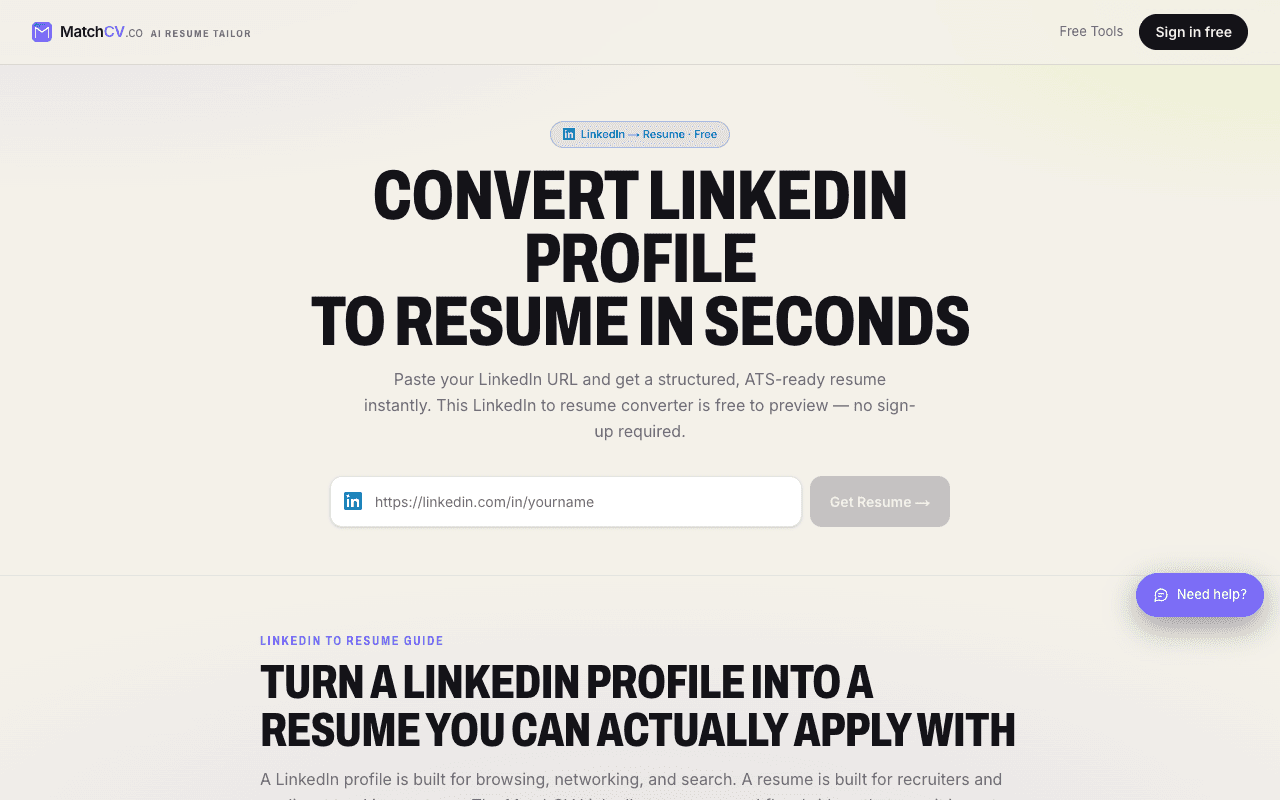
1. Open the converter and paste a profile URL in the form https://www.linkedin.com/in/your-profile.
2. Choose the conversion action and review the returned name, headline, experience, education, and skills.
3. Continue with Generate My Resume to enter the resume workflow. If you are not signed in, the tool asks you to create an account or sign in.
4. Review the full document in the editor, tailor it to your posting, and check the downloaded file.
Public visibility does not guarantee a successful import: access restrictions, incomplete data, or parsing errors can prevent or limit the result. If the import fails, use your own profile export or copy your information manually. Do not change privacy settings just to reveal information you do not want public.
Field-by-field review after conversion
| Field | Compare with your source | Common editing decision |
|---|---|---|
| Name and contact | Spelling, email, phone, relevant location | Add contact details that the public profile did not expose |
| Employment | Employer, title, dates, current status | Correct omissions and preserve chronology |
| Description | Your contribution and the actual project | Replace vague prose with supported evidence |
| Education | Institution, qualification, dates | Keep the qualification name accurate |
| Skills | What you have used and the job requirements | Prioritize relevant skills; omit unsupported terms |
| Export | Reading order, page breaks, links | Inspect the downloaded file and application fields |
Worked example: profile wording to a resume bullet
This fictional example illustrates editing, not a real customer's result.
Profile text: I work with customer teams and help improve onboarding.
Additional facts the applicant can support: they maintain an onboarding checklist, host weekly setup sessions, and summarize recurring issues for the product team. They do not have a verified retention or revenue metric.
Resume draft: Maintained the customer onboarding checklist, hosted weekly setup sessions, and summarized recurring implementation issues for the product team.
The edit is more specific without inventing “improved retention by 30%.” If the target posting emphasizes customer training, lead with the setup sessions. If it emphasizes product feedback, lead with the issue summaries. See the customer service keyword guide for related examples.
Tailor the draft to one job
Read the posting and identify the requirements you can support. The keyword scanner can highlight terms to review, but a missing term is not automatically a skill you should add. Use the manual tailoring guide for an evidence-first workflow.
For international applications, check whether the employer means a short application CV or a longer academic record. Our CV vs resume guide explains that distinction.
Frequently asked questions
Can I convert a private profile?
The URL converter depends on publicly accessible information. A private or restricted profile may not import. You can instead use information you copy or export yourself without making it public.
Will all of my fields transfer?
Do not assume so. Check contact details, dates, education, and skills against your source. A successful preview does not certify completeness.
Does conversion guarantee ATS compatibility?
No. Review the exported file and follow the employer's instructions. A text-based checker cannot reproduce every parser or verify how a particular application form interprets your file.
Is the converter free?
A guest preview is available subject to usage limits. Continuing into generation and editing requires an account; check the tool's current allowances and pricing for the actions you need.
Try the LinkedIn converter, or start with a resume template if you prefer to assemble your document manually.
Turn your LinkedIn profile into an editable resume draft
Convert my LinkedIn profile →or sign in free to tailor your resume with AI